← Back to Onny

Getting started

Your first project,
without the guesswork.

Learn the essentials, bring in your first references and turn a blank canvas into a workspace that makes sense to you.

Start the guide ↓

Before you begin

From download to blank canvas.

  1. 01

    Install

    Download Onny for Windows and open the installer from your Downloads folder.

    Download Onny →
  2. 02

    Open

    If Windows SmartScreen appears, choose More info and then Run anyway.

  3. 03

    Create

    Open Onny and begin with a blank project. Everything you add remains on your computer.

01 / Your first project

Begin with the material you already have.

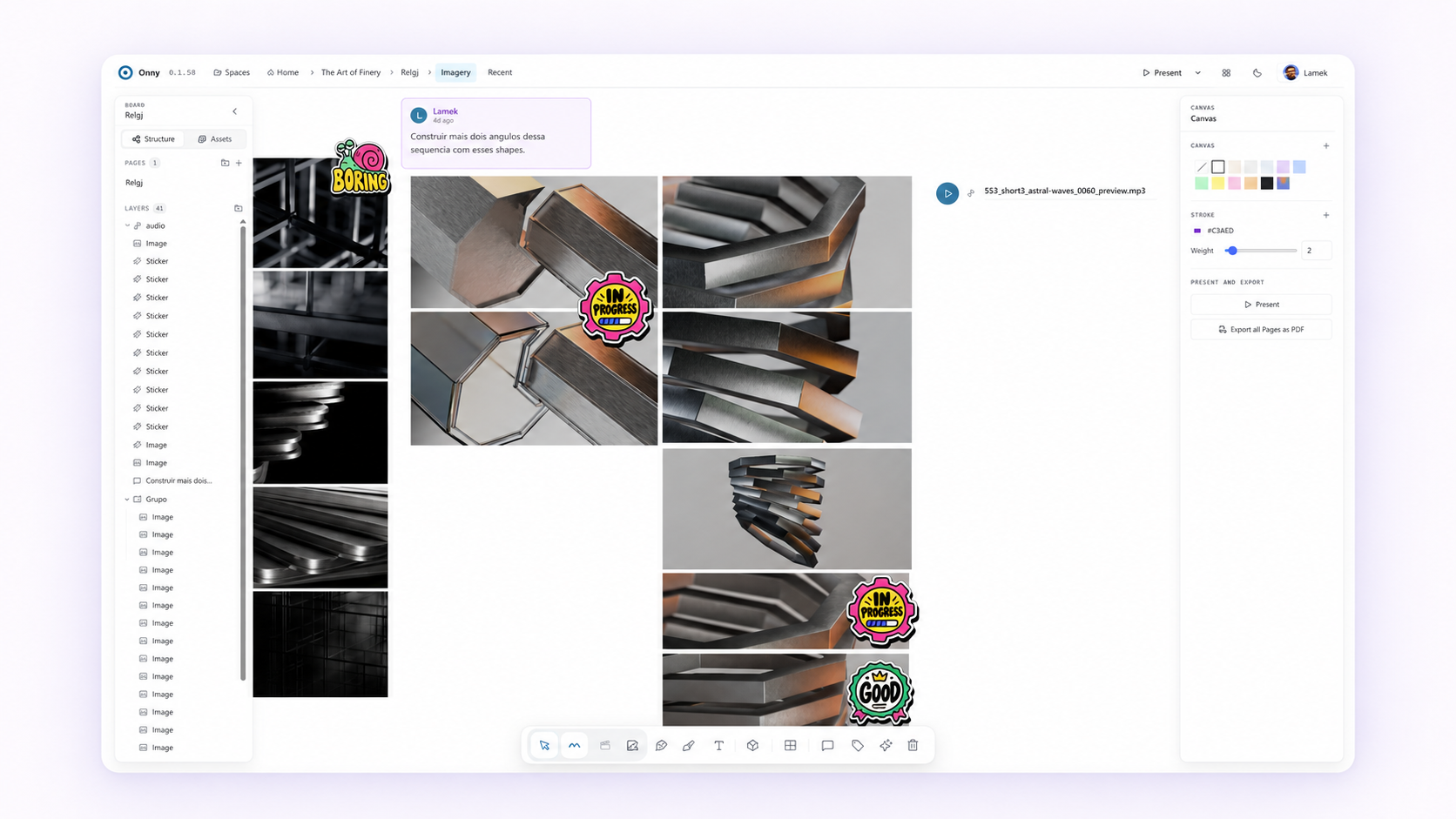
Bring your references into one place instead of starting by building a perfect structure. Add images, video, GIFs, audio or image sequences, then move things around until the relationships become clear.

  • Add the references that define the project
  • Keep related material close together
  • Leave space for ideas that arrive later
A first creative workspace in Onny
02 / Organize the canvas

Give every idea a little context.

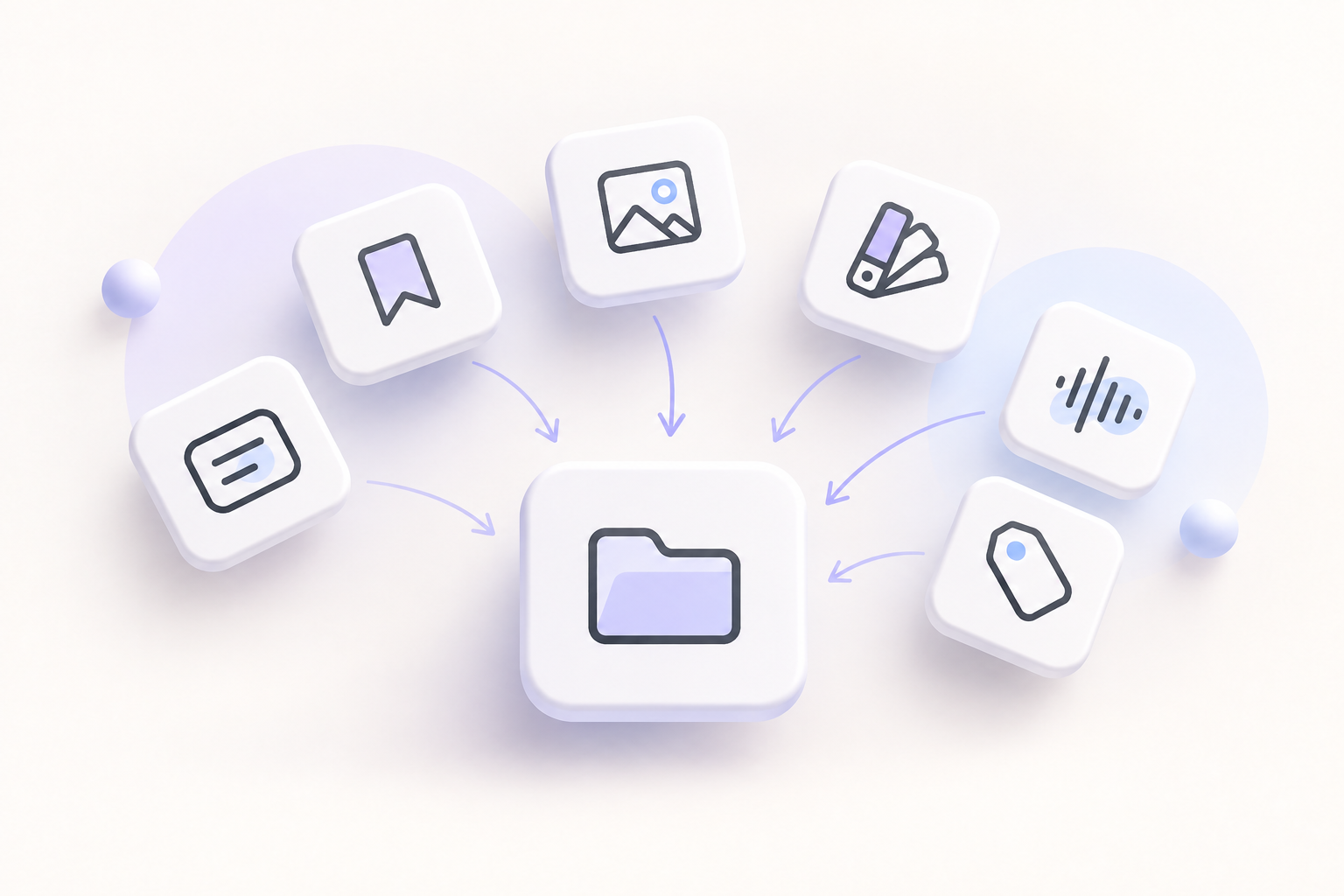
Use frames to create visual sections, notes to explain decisions and tags to mark status or priority. The goal is not to make the board rigid—it is to make it easy to return tomorrow and understand where you left off.

  • Frames create clear areas on the canvas
  • Notes keep decisions beside the work
  • Tags make status visible at a glance
References organized in frames in Onny
03 / Draw and explain

Sketch directly where the idea lives.

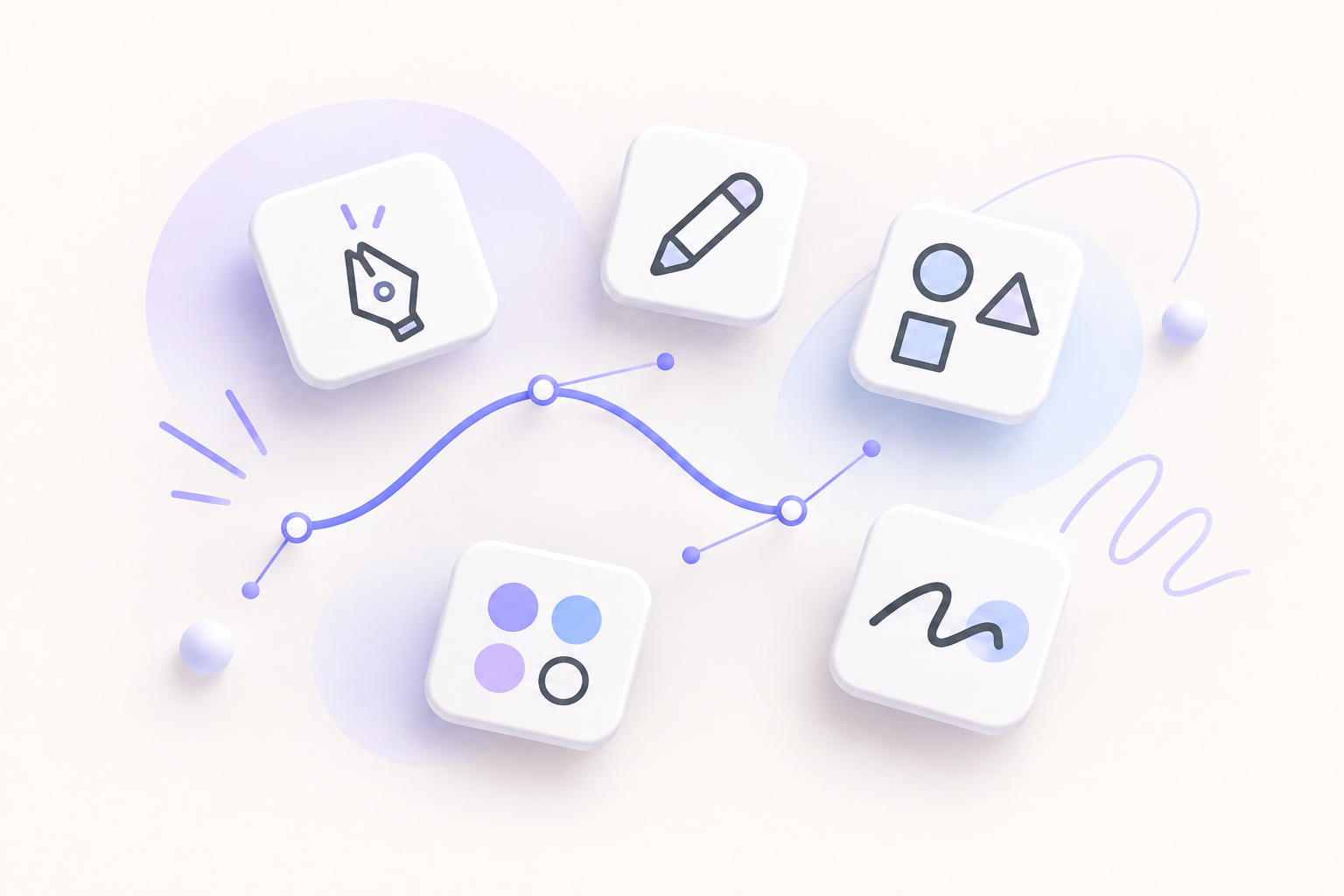
Switch to Draw mode when a reference needs an annotation, a direction or a quick idea. Use freehand drawing for speed, the vector pen for precision and geometric shapes for structure.

  • Annotate visual references
  • Connect related ideas
  • Explore without leaving the canvas
Drawing and vector tools available in Onny
04 / Change the view

Use the view that fits the work.

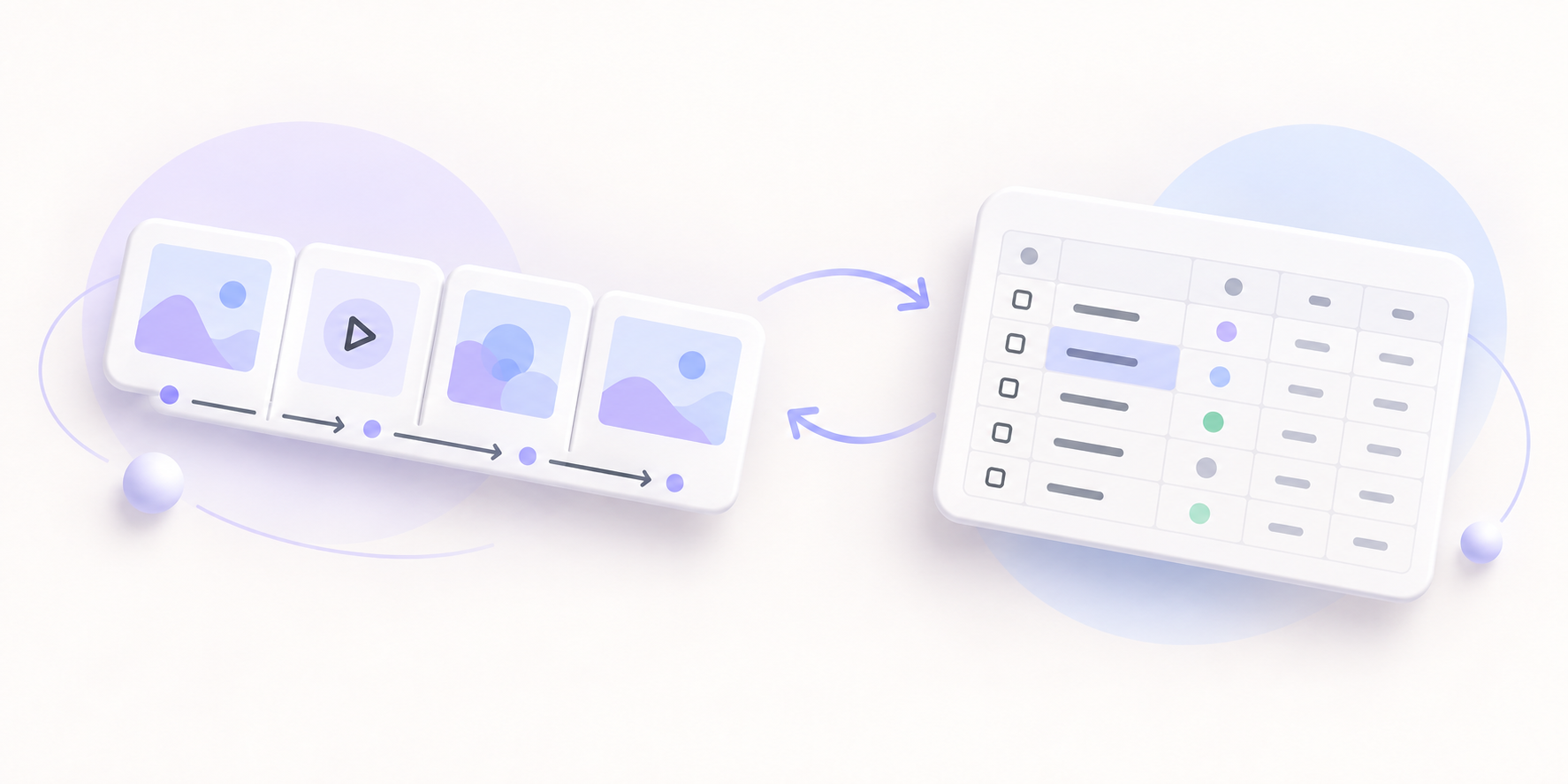
The same project can need different kinds of thinking. Use Storyboard mode to arrange scenes and sequences. Move to Spreadsheet mode when details, status and production information need a clearer structure.

  • Canvas for open visual exploration
  • Storyboard for order and narrative
  • Spreadsheet for structured production details
Storyboard and spreadsheet views in Onny

Keep learning

More guides will grow with Onny.

Focused tutorials and video walkthroughs will be added here as they are published. For now, follow the development log for new features and practical notes.

Development notesRead the Onny logUpdates from Substack →
Video walkthroughsComing soonA dedicated Onny playlist